RePoSyD on Windows
Overview
- Installing required Packages.
- Installing Yarn.
- Installing the Git CLI.
- Installing the @RePoSyD/Service CLI (Command Line Interface) from the RePoSyD registry.
- Installing a RePoSyD instance.
Installing required Packages
The required packages can be installed using Windows Installer or via the command line with WinGet.
WinGet
Step 1 – Install Node.js
Press Win+X, select Windows PowerShell (Admin) or Terminal (Admin) and run the command to list the available Node.js versions:
winget search OpenJS.NodeJS
C:\> winget search OpenJS.NodeJS
The `msstore` source requires that you view the following agreements before using.
Terms of Transaction: https://aka.ms/microsoft-store-terms-of-transaction
The source requires the current machine's 2-letter geographic region to be sent to the backend service to function properly (ex. "US").

Do you agree to all the source agreements terms?
[Y] Yes  [N] No: Y
Name          Id                Version  Source
------------------------------------------------
Node.js       OpenJS.NodeJS     26.3.0   winget
Node.js 10    OpenJS.NodeJS.10  10.24.1  winget
Node.js 12    OpenJS.NodeJS.12  12.22.12 winget
Node.js 14    OpenJS.NodeJS.14  14.21.3  winget
Node.js 15    OpenJS.NodeJS.15  15.14.0  winget
Node.js 16    OpenJS.NodeJS.16  16.20.2  winget
Node.js 17    OpenJS.NodeJS.17  17.9.1   winget
Node.js 18    OpenJS.NodeJS.18  18.20.8  winget
Node.js 19    OpenJS.NodeJS.19  19.9.0   winget
Node.js 20    OpenJS.NodeJS.20  20.20.2  winget
Node.js 21    OpenJS.NodeJS.21  21.7.3   winget
Node.js 22    OpenJS.NodeJS.22  22.22.3  winget
Node.js 23    OpenJS.NodeJS.23  23.11.0  winget
Node.js 4     OpenJS.NodeJS.4   4.8.7    winget
Node.js 6     OpenJS.NodeJS.6   6.17.0   winget
Node.js 7     OpenJS.NodeJS.7   7.1.0    winget
Node.js 8     OpenJS.NodeJS.8   8.11.3   winget
Node.js (LTS) OpenJS.NodeJS.LTS 24.16.0  winget
Pick the version Node.js 20 from the list and and run the command:
winget install -e --id OpenJS.NodeJS.20
C:\> winget install -e --id OpenJS.NodeJS.20
Step 2 – Install Visual Studio Build Tools
Enter the following command to install the build tools:
winget install Microsoft.VisualStudio.2022.BuildTools
C:\> winget install Microsoft.VisualStudio.2022.BuildTools
Found Visual Studio BuildTools 2022 [Microsoft.VisualStudio.2022.BuildTools] Version 17.14.33
This application is licensed to you by its owner.
Microsoft is not responsible for, nor does it grant any licenses to, third-party packages.
Downloading https://download.visualstudio.microsoft.com/download/pr/d3ea0f65-e303-451a-956d-2525aafc8aeb/8473dd6318c960a52a6fe272ac16bbbbc410c58f4d619c4299f0dba08cde7269/vs_BuildTools.exe
  ██████████████████████████████  4.25 MB / 4.25 MB
Successfully verified installer hash
Starting package install...
Successfully installed
Step 3 – Install Python 3
Enter the following command to install python:
winget install Python.Python.3.14
C:\> winget install Python.Python.3.14
Found Python 3.14 [Python.Python.3.14] Version 3.14.5
This application is licensed to you by its owner.
Microsoft is not responsible for, nor does it grant any licenses to, third-party packages.
Downloading https://www.python.org/ftp/python/3.14.5/python-3.14.5-amd64.exe
  ██████████████████████████████  28.9 MB / 28.9 MB
Successfully verified installer hash
Starting package install...
Successfully installed
Step 4 – Install git
Press Win+X, select Windows PowerShell (Admin) or Terminal (Admin) and enter:
winget install --scope=machine --id Git.Git -e --source winget
This installs the git command line interface.
C:\> winget install --scope=machine --id Git.Git -e --source winget
Found Git [Git.Git] Version 2.54.0
This application is licensed to you by its owner.
Microsoft is not responsible for, nor does it grant any licenses to, third-party packages.
Downloading https://github.com/git-for-windows/git/releases/download/v2.54.0.windows.1/Git-2.54.0-64-bit.exe
  ██████████████████████████████  62.1 MB / 62.1 MB
Successfully verified installer hash
Starting package install...
Successfully installed
To verify the installation, open and enter git -v
C:\> git -v
git version 2.54.0.windows.1
Installer Packages
Step 1 – Installing Node.js
Open your favorite web browser, navigate to https://nodejs.org/en/download/archive/v20.20.2 and download the Installer for the 64-bit version of Node.js (node-v20.20.2-x64.msi). Alternative you can use the ZIP-version (node-v20.20.2-win-x64.zip) for the installation.
Once the download is completed, open the installer to start the installation.
 Fig. 1: Node.js Installer
Click on Next until you reach the step “Tools for Native Modules”. Click on the checkbox to enable the installation of additional build tools.
 Fig. 2
The installation of RePoSyD will fail, if this option is not activated!
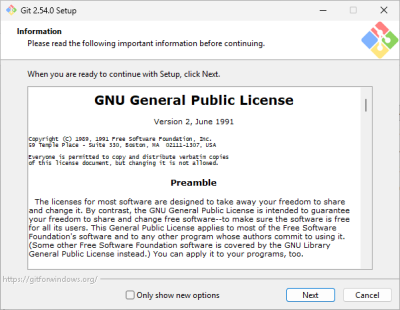
Step – Installing Git
Download the lastest version from https://git-scm.com/install/windows and run the installer.
Yarn (Package Manager)
WinGet
Press Win+X, select Windows PowerShell (Admin) or Terminal (Admin) and run the command winget install -e --id Yarn.Yarn.
This installation method is the preferred approach, as it correctly adds Yarn to the search paths. If the installation is performed using npm, this may lead to problems later on.
C:\> winget install -e --id Yarn.Yarn
Found Yarn [Yarn.Yarn] Version 1.22.22
This application is licensed to you by its owner.
Microsoft is not responsible for, nor does it grant any licenses to, third-party packages.
Downloading https://github.com/yarnpkg/yarn/releases/download/v1.22.22/yarn-1.22.22.msi
  ██████████████████████████████  1.59 MB / 1.59 MB
Successfully verified installer hash
Starting package install...
Successfully installed
npm
Open a command prompt (or PowerShell) to install Yarn as a global Node.js package, and enter the following:
C:\> npm install -g yarn
Ignore any warnings about an outdated npm. We can't update it to the latest version due to incompatibility with Node 20.
Installing Yarn behind a Proxy Server
If RePoSyD is installed in a corporate environment, you may need to configure NPM to provide authentication for the proxy server. Open a command shell and enter the following commands to configure NPM to use an HTTP and/or HTTPS proxy.
$ npm config set proxy http://username:password@host:port
$ npm config set https-proxy http://username:password@host:port
Or add the settings directly to your ~/.npmrc file:
proxy=http://username:password@host:port
https-proxy=http://username:password@host:port
Verifying the Installaltion
After completion of the installer, enter the following:
C:\> yarn -v
The system should display the YARN version installed on your system.
C:\> yarn -v
v1.22.19
Installing the RePoSyD CLI
Press Win+X, select Windows PowerShell (Admin) or Terminal (Admin) and run the following commands:
yarn config set registry https://registry.reposyd.de
yarn global add @reposyd/service
C:\> yarn config set registry https://registry.reposyd.de
yarn config v1.22.19
success Set "registry" to "https://registry.reposyd.de".
Done in 0.04s.

C:\> yarn global add @reposyd/service
yarn global v1.22.22
[1/4] Resolving packages...
warning @reposyd/service > @reposyd/templates > loadash@1.0.0: Package is unsupport. Please use the lodash package instead.
warning @reposyd/service > @reposyd/rg > svg2png > phantomjs-prebuilt@2.1.16: this package is now deprecated
warning @reposyd/service > @reposyd/rg > svg2png > phantomjs-prebuilt > request@2.88.2: request has been deprecated, see https://github.com/request/request/issues/3142
warning @reposyd/service > @reposyd/rg > svg2png > phantomjs-prebuilt > request > uuid@3.4.0: Please upgrade  to version 7 or higher.  Older versions may use Math.random() in certain circumstances, which is known to be problematic.  See https://v8.dev/blog/math-random for details.
warning @reposyd/service > @reposyd/rg > svg2png > phantomjs-prebuilt > request > har-validator@5.1.5: this library is no longer supported
[2/4] Fetching packages...
warning @zip.js/zip.js@2.8.26: The engine "deno" appears to be invalid.
warning @zip.js/zip.js@2.8.26: The engine "bun" appears to be invalid.
[3/4] Linking dependencies...
warning "@reposyd/service > @reposyd/core > @reposyd/utils > datetime-locale-patterns > cldr-dates-full@44.0.1" has unmet peer dependency "cldr-numbers-full@44.0.1".
[4/4] Building fresh packages...
success Installed "@reposyd/service@5.20.0" with binaries:
      - reposyd
Done in 22.98s.
Issues
- node-pre-gyp ERR ECONNRESET The error is due to connection issues with https://release-assets.githubusercontent.com. The only (unfortunate) option in this case is to repeat the installation until it completes successfully.
The installation of @reposyd\cli as a global package may fail using yarn. In this case use npm for the installation.
npm config set registry https://registry.reposyd.de
npm i -g @reposyd/service
C:\> npm config set registry https://registry.reposyd.de

C:\> npm i -g @reposyd/service
Installing @reposyd/service behind a Proxy Server
If RePoSyD is installed in a corporate environment, you may need to configure YARN to provide authentication for the proxy server. Open a command shell and enter the following commands to configure NPM to use an HTTP and/or HTTPS proxy.
$ yarn config set proxy http://username:password@host:port
$ yarn config set https-proxy http://username:password@host:port
Or add the settings directly to your ~/.yarnrc file:
proxy=http://username:password@host:port
https-proxy=http://username:password@host:port
Verifing the Installation
C:\> reposyd -V
2.0.0

C:\>
Installing a RePoSyD Instance
Open a command prompt and run the following command:
reposyd install instance c:\reposyd
reposyd install instance c:\reposyd
WARN: local package not found - checking global package
INFO: installation started
INFO: copying files from C:\Users\reposyd-test\AppData\Local\Yarn\Data\global\node_modules\@reposyd\service\dist\templates\installation to c:/reposyd
INFO: template files and folders copied
INFO: installation of predefined packages has started
INFO: installation of predefined packages is complete
INFO: installation of the '@reposyd/service' package has started
INFO: installation of the '@reposyd/service' package is complete
INFO: installation of the '@reposyd/templates' package has started
INFO: installation of the '@reposyd/templates' package is complete
INFO: installation of the '@reposyd/mkcert' package has started
INFO: installation of the 'mkcert' package is complete
INFO: installation of the '@reposyd/app' package has started
INFO: installation of the '@reposyd/app' package is complete
INFO: url: sqlite:c:\reposyd\data\database?database=reposyd.sqlite
INFO: creation of the standard project started
INFO: creation of the standard project completed
INFO: installation completed
INFO: url     : sqlite:c:\reposyd\data\database?database=reposyd.sqlite
INFO: account : admin
INFO: password: [PLEASE NOTE DOWN THE PASSWORD DISPLAYED HERE]
Do not forget to write down the automatically generated password in the last line of the output.
If you don't want to use an autogenerated password, you specify your own password using the CLI option –password.
C:\> reposyd install instance c:\reposyd --password <mypassword>
For more information, see RePoSyD CLI install instance.
What's next?
See chapter Run the RePoSyD API and Web Server“ for more information on how to start the REST API and the web server.